This tutorial will show you how to add Mootools Featured Posts Slider into blogger or any other web site.You can look at the page of this Mootools Featured Posts Slider.Now if you like to add this slider to your site then follow the steps given below.
1.Login to your blogger dashboard--> layout- -> Edit HTML
2.Scroll down to where you see tag .
3.Copy below code and paste it just before the tag .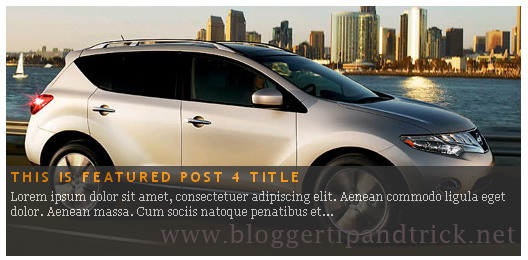
NOTE : You can DOWNLOAD and HOST mootools-1.2.1-core-yc.js yourself.Andalso you can change width and height of this slider easily (Default width:515px and height:250px;).
4.Now save your template.
5.Go to Layout --> Page Elements.
6.Click on 'Add a Gadget'.
7.Select 'HTML/Javascript' and add the code given below and click save.
Change 5000 to change your slider speed.ENTER-YOUR-POST-1-LINK-HERE">THIS-IS-FEATURED-POST-1-TITLE
FEATURED-POST-1-DESCRIPTION
FEATURED-POST-1-IMAGE-ADDRESS" class="full" alt="" />
ENTER-YOUR-POST-LINK-2-HERE">THIS-IS-FEATURED-POST-2-TITLE
FEATURED-POST-2-DESCRIPTION
ENTER-YOUR-POST-3-LINK-HERE">THIS-IS-FEATURED-POST-3-TITLE
FEATURED-POST-3-DESCRIPTION
ENTER-YOUR-POST-4-LINK-HERE">THIS-IS-FEATURED-POST-4-TITLE
FEATURED-POST-4-DESCRIPTION
ENTER-YOUR-POST-5-LINK-HERE">THIS-IS-FEATURED-POST-5-TITLE
FEATURED-POST-5-DESCRIPTION
NOTE : Remember to replace ,
ENTER-YOUR-POST-X-LINK-HEREs with your real post links.
THIS-IS-FEATURED-POST-X-TITLEs with your real post titles.
FEATURED-POST-X-DESCRIPTIONs with your post descriptions.
FEATURED-POST-X-IMAGE-ADDRESSs with your real image addresses.
Look at the example below.
This is featured post 1 title
Lorem ipsum dolor sit amet, consectetuer adipiscing elit. Aenean commodo ligula eget dolor. Aenean massa. Cum sociis natoque penatibus et...
This is featured post 2 title
Lorem ipsum dolor sit amet, consectetuer adipiscing elit. Aenean commodo ligula eget dolor. Aenean massa. Cum sociis natoque penatibus et...
This is featured post 3 title
Lorem ipsum dolor sit amet, consectetuer adipiscing elit. Aenean commodo ligula eget dolor. Aenean massa. Cum sociis natoque penatibus et...
This is featured post 4 title
Lorem ipsum dolor sit amet, consectetuer adipiscing elit. Aenean commodo ligula eget dolor. Aenean massa. Cum sociis natoque penatibus et...
This is featured post 5 title
Lorem ipsum dolor sit amet, consectetuer adipiscing elit. Aenean commodo ligula eget dolor. Aenean massa. Cum sociis natoque penatibus et...


You are done.











;">https://blogger.googleusercontent.com/img/b/R29vZ2xl/AVvXsEhmAt-smf1HSaH0f_wAUA-D7BAP8OwhA0MW9zgiKiGfsUvirc6pCQJmfPVZFUyLyIHXYa-HyOOozNud9VBChN4iLwF4thADCo_6kTOwFcYU1N-p4T9Mn7Uu6iEsU4bPLY6F_vS_MaZpCEFk/+slider1.jpg</span>)
;">https://blogger.googleusercontent.com/img/b/R29vZ2xl/AVvXsEhCBH5XnJaQNxIMTeZd_C7K9tvDpftMbBuQjHbb-13sSBhjVtqGaNbWCw3IoObF7VTes_zzlot4ULi37q44sHSJ7DgCVZiFDc3kKarOLuePfaMhTYKDLLr3BnelN1fI2tscBWwD2jWX8sQU/+slider2.jpg</span>)
;">https://blogger.googleusercontent.com/img/b/R29vZ2xl/AVvXsEhj8vmIslHClVNVNcLtUNU8BUrtQcS-Q1nHa0ODUmygPgnOYg1xVfWbrL53JwsR7_Xs0IvQI33PNn1OMzXtjlF19ChTJ7FxK0gtaiNaNqlc4gZBjyrBesMaVoK8HekrG7HkKIBRbiOmNR0_/+slider3.jpg</span>)
;">https://blogger.googleusercontent.com/img/b/R29vZ2xl/AVvXsEj8aPYSU5U01HIQFXpgGpvrBHbP4DeLMJ_zlOOMYZ5T1UY8RlcjjKf-vTqorymNR3fMr-p5SzRwc5A2uaaxRwLNTifplSso3x5Sb_6LF1d5zZFn2Ot-07gCUUKms51Takyd4HIR4u_FVDev/+slider4.jpg</span>)
;">https://blogger.googleusercontent.com/img/b/R29vZ2xl/AVvXsEijbC-K8LsZkEqCw6W6cxTQ79Qw06myDU8brEXbKrOffleiSAeh_WcKTa8N1Sxxu6clDY7KwtninYC_nd3S4sQTShlV7X_cej0rJepFahn7Vh6EaXwUouDLsOz8J1bDkcvZs_Qae_Q1aesu/+slider5.jpg</span>)

