Showing posts with label Photos. Show all posts

Where are Uploaded Photos on Blogspot Saved?


How to check uploaded photos on Blogger?
Where is my photos saved in Blogspot?
How to delete uploaded photos from Blogspot's server?

When you upload photos while writing a blog post, the image code automatically appears and sometimes you wonder where it is saved.

In case you don't know, they are actually uploaded and saved into Picasa Web Albums linked to your Google Account, which is the also the account you use to log-in Blogspot.

picasa logo

Once you're in Picasa, you might need to log-in with your Google account. After that, you'll see your available albums.

picasa albums

You'll be able to see albums for all the blogs associated with your Google account. There is a special album "Blogger Pictures" just for your uploaded profile pictures as well.

Click on any of the albums to view the photos you've uploaded.

picasa photos

Every album has a limit of 1000 photos and a new album will be automatically created when a current album is full.

With that, you'll be able to upkeep the album and delete any unnecessary not-used photos uploaded previously.

Duplicates are advised to be deleted as well because it saves space. But be careful not to delete images that are currently in-use in your blog, or else the image link will be broken and will not be displayed on your blog.


How To Change Dimension of Photo Manually on Blogspot


How to modify the photo resolution on Blogger?
How to change size of photo manually on Blogspot?
How to edit the picture size on photos uploaded on Blogspot?

If you want to manually change the dimension, or distort the size, of a particular photo uploaded on Blogger, here's how.

This is the sample picture.


After uploading, check the code and look for "width:" and "height:" from the photo code.

width: 400px; height: 265px;" src="https://blogger.googleusercontent.com/img/b/R29vZ2xl/AVvXsEixhJYZU2LvNFpOVHyqdIEUM1O4MoK1qAie8lJt74w6VtbWy3QZP5XM0_Ja3wAUCbJUS-7bZ6srTtOmCR3PWd7t_9dRs3eyT3HbkirKBce4uTZ9toTU7IQMWdA35aeMMsqeH_7xSXLIEWQv/s400/asian.jpg" alt="" id="BLOGGER_PHOTO_ID_5466089975697168450" border="0" />

Then change the pixels to your desired dimension.

Here's an example of "width: 200px; height: 500px;".


Enjoy changing the dimension!


How To Remove Link on Photos Uploaded to Blogger


How to disable linking on photos uploaded on Blogspot?
How to unlink the pictures on Blogspot?

Everytime when you upload a picture onto your blog post, the picture will be automatically linked to its original sized picture.

If you want to disable/remove the auto-linking, here's how.

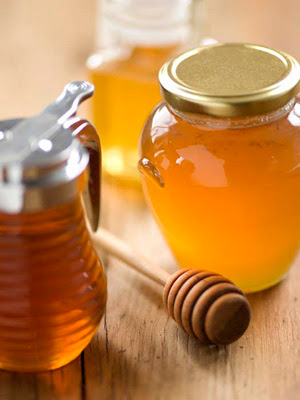
honey jar
Here's one picture freshly uploaded onto this blog post. As you can see, whenever you mouse-over the picture, the cursor will change to a pointer style and it's clickable.

To remove the link, you have to dig into the code of the photo.


As you can see from the code above, you should remove the code highlighted in orange to remove the link.

Therefore, this would be the remaining code.

cursor: pointer; width: 300px; height: 400px;" src="https://blogger.googleusercontent.com/img/b/R29vZ2xl/AVvXsEirqH1cc1_oGSUMrGl9cMISB1FuquOOguBezuo-mVxDqF_m7pmCAfK2Jx6OL3v7lCGgKRc7-N_G2-io5jHOZRvJD9kqjmHhvD98-xFlqXQy_DrDL2iOARjXMjHPO5w_yGoV7meM97eSGg8o/s400/honey.jpg" alt="" id="BLOGGER_PHOTO_ID_5466089975697168450" border="0" />

However, if you want to remove the pointer cursor as well, you should remove the "cursor" part from the remaining code.

And this would be the final picture.

honey jar
Now the picture is not linked, not clickable and the cursor doesn't change to a pointer whenever you mouse-over it.

That's it!


How To Change Default Photo Size Uploaded on Blogspot


How to change the size on photos uploaded on Blogger?
How to set the original photo size on Blogspot?
How to modify the size of photos uploaded on Blogspot via Picasa?
How to change the photos uploaded on Blogspot to the original size?
How to edit the size of the photos uploaded on Blogspot?

If you have uploaded a photo bigger than the default 400px x 400px maximum width and height on Blogspot and would like to display its original size, here's how.

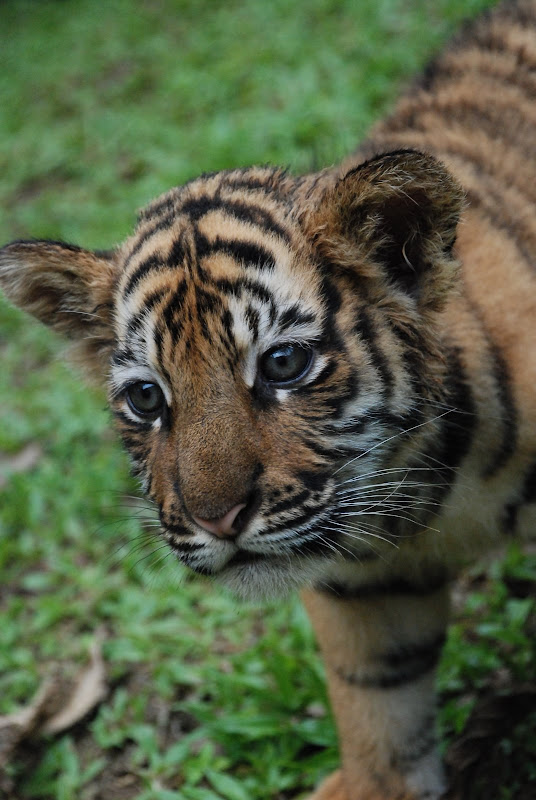
baby tiger

Here's a demonstration: You uploaded this (tiger) picture onto your Blogspot (which is originally larger at 1071px x 1600px), and you want it to be displayed on a bigger scale. What you need to do is to look at the HTML section of the particular blog post.

Look for the code lines for the picture. It will look somehow like this.

https://blogger.googleusercontent.com/img/b/R29vZ2xl/AVvXsEiWSRHjGVOgb9pvU9Ggr7Th-U2OO8T9_dC93rBX2gIwiR78ddocvyE5ExhGkxVWRMsfUBqY9-rz_D4SQKZHDF4tk2aEtcvOSHnrvqH166ENMvcG_5ReT5QeZ50mi16npKvBlaSFd35pZxmh/s400/DSC_0232.JPG" alt="" id="BLOGGER_PHOTO_ID_5466089975697168450" border="0" />
Then, all you need to do is to change the URL's (highlighted in Orange) "s400" part.

Change it to:
  • s800 - for medium size.
  • S1600 - for full size.
When it's changed to s800, here's the medium size of the photo shown.

baby tiger

Now the displayed photo size is 536px x 800px.

Likewise, change it to "s1600" if you want to display to full size of the photo.

Take note: s800 and s1600 has no connection with the height and width, and may show different results compared to the demonstration shown here. It varies depending on the original size of your uploaded photo.

Any questions are welcomed.